Download JOV Office
Free for 7 days. Install it in about a minute.
Requirements
- macOS 14 or later
- A Mac with Apple silicon or an Intel processor
- A JOV Account (you can create it in the app)
- An internet connection to sign in, and now and then to check your subscription. Your documents never need one.
How to install
- Open the disk image you downloaded (the .dmg file in your Downloads folder). Its window shows these steps too.
- Drag JOV Office onto the Applications folder.
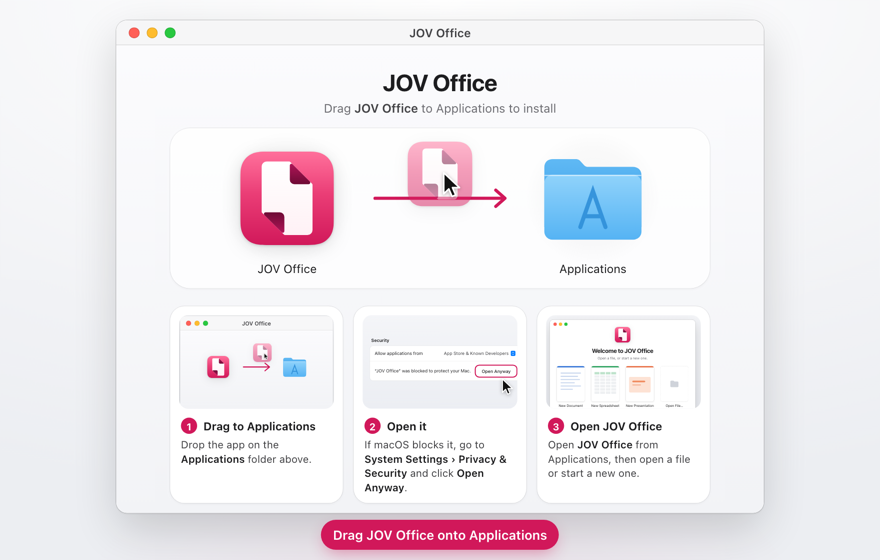
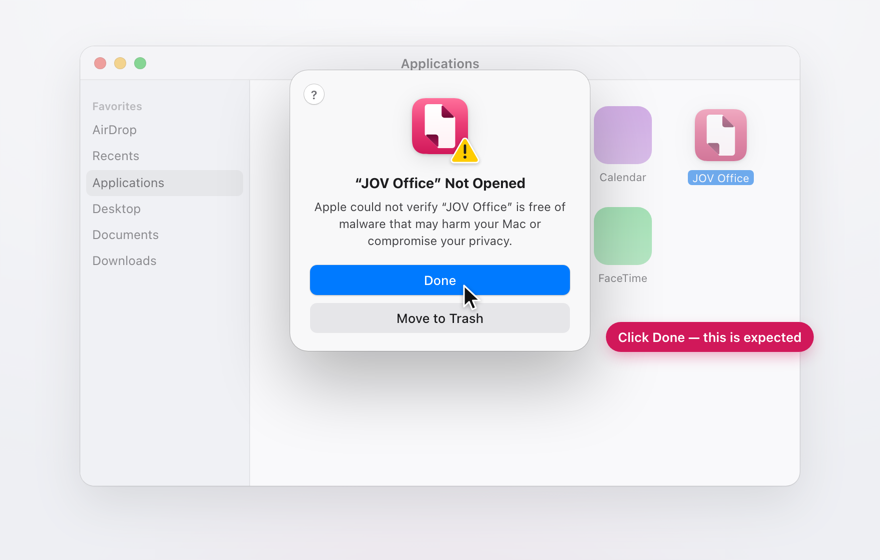
- Open JOV Office from Applications. macOS says it can’t verify the app. Click Done (or OK), not Move to Trash.
- Allow it once, as shown below for your version of macOS.
Allow JOV Office to open
macOS 15 Sequoia or later
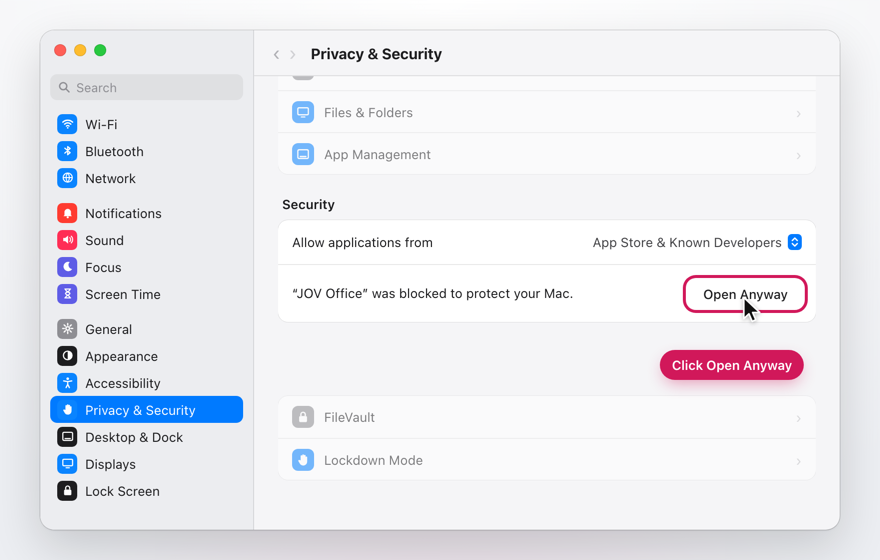
- Open System Settings ▸ Privacy & Security.
- Scroll down to Security. Next to the message about JOV Office, click Open Anyway.
- Confirm with your Mac’s password (or Touch ID), then click Open Anyway again.
The Open Anyway button shows for about an hour after you try to open the app. If you don’t see it, open JOV Office once more and come back.
macOS 14 Sonoma
- In Finder, open Applications and Control-click JOV Office (or right-click it).
- Choose Open, then click Open in the message.
- Sign in or create your account. Your 7-day free trial starts the first time you sign in on your Mac.
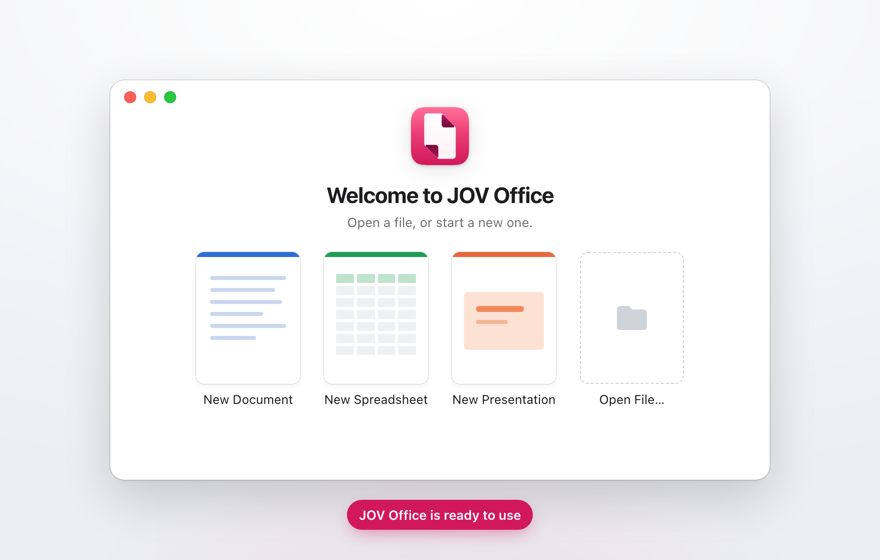


You only need to do this once. After that, JOV Office opens like any other app.
JOV Office checks for updates once a day. A new version downloads in the background and installs when you quit the app.
Why macOS asks
JOV Office is downloaded directly from this website, not from the Mac App Store, and it isn’t notarized by Apple. For apps like this, macOS asks you to confirm that you trust them before they open for the first time.
Only download JOV Office from this website.